
Anuncios
Feeling like your device lags more every week? That slow start, frozen apps, and jittery scrolling make anyone wonder if a new model is the only fix.
Good news: most of those issues come from digital clutter and simple settings, not hardware failure. A focused cleanup can restore responsiveness at no cost and cut down crashes tied to clogged storage.
In this piece, you’ll get a clear, step-by-step approach to make an old handset feel fast again. I’ll explain what it means to free storage, reduce background tasks, keep software current, and tighten privacy settings in plain terms.
Expect faster app launches, smoother scrolling, fewer freezes, and longer battery life after a short session. Menu names differ by model—Pixel, Samsung, OnePlus—but the steps match across Android phones.
Key Takeaways
- Simple maintenance can often replace the need to buy a new device.
- Freeing storage and limiting background activity yields the biggest gains.
- Keep apps and the OS updated for steady, reliable speed.
- Steps work across popular Android brands with minor menu name changes.
- The guide moves from diagnosis to storage reset, tuning, and battery/security checks.
Why Your Phone Feels Slow Over Time
Slowdowns rarely arrive all at once — they creep in as storage fills and apps keep working behind the scenes.
Low storage limits how the system handles temporary tasks. When storage space is tight, read/write operations take longer and the device needs extra time to sort files and run apps.
Digital junk is real: forgotten downloads, old PDFs, random GIFs, thumbnails, and residual app data quietly eat space. These items bloat storage and make searching or indexing slower.
Background activity also adds load. Multiple apps can keep syncing, refreshing feeds, and using data even when idle. That raises CPU and RAM use and reduces battery life.
Cache buildup — especially in browsers and social apps — can balloon and make apps feel glitchy. Outdated OS versions and heavier app updates strain older hardware, while overheating or a failing battery can force the device to throttle.
Finally, a weak Wi‑Fi or cellular link often looks like a slow phone. The rest of this guide shows practical steps to find the cause and fix it fast.
| Cause | Common Symptom | Quick Fix |
|---|---|---|
| Low storage | Slow app launches, long saves | Delete large files; free space |
| Background activity | Battery drain, lag | Limit sync and background data |
| Cache & junk files | Glitches, app freezes | Clear app cache; remove leftovers |
| Network issues | Slow page loads | Test another Wi‑Fi or cellular |
Clean, Optimize, and Boost Your Phone’s Performance with a Quick Storage Reset
A short storage sweep can free gigabytes and cut app lag fast. Start with the easiest wins and work from there.
Uninstall unused apps from Settings or the Play Store to instantly free space and reduce lingering permission access. Do a quick app drawer audit: if you haven’t opened an app in months, remove it—especially heavy games or shopping apps.
Open your files app (Files by Google, Samsung My Files, or File Manager) and check Downloads. Delete installers and old documents, or move items you keep to Google Drive to reclaim storage space.
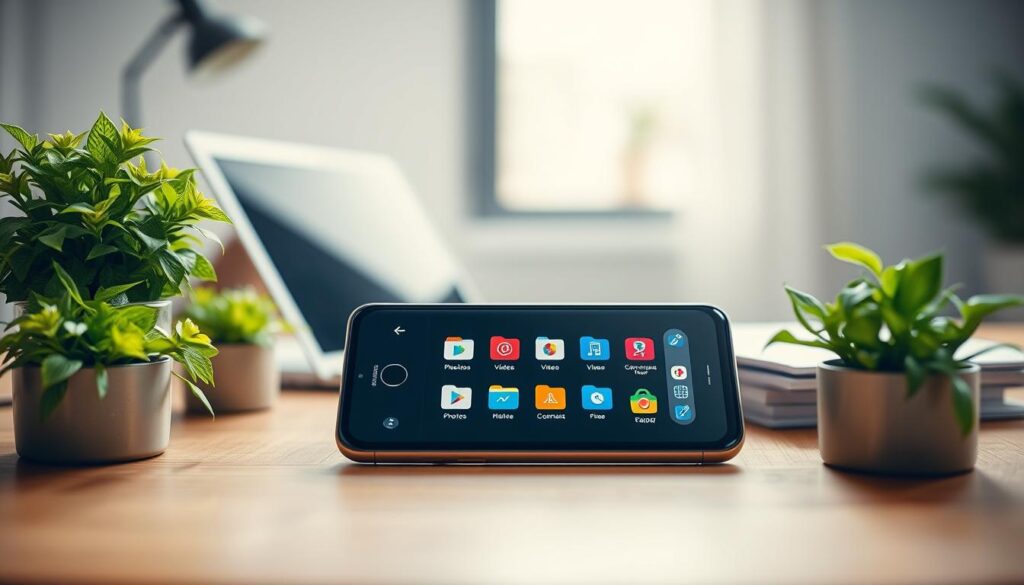
Run a large-file pass using the file tool’s “Large files” view. Look for videos, APKs, and old backups that quietly eat space android users overlook.
For junk cleanup, open Files by Google, tap Clean, then select junk files to remove safe-to-delete temp items and thumbnails. If one app misbehaves, go to Settings > Apps > select app > Storage > Clear Cache to clear its stored data.
Finally, trim photo clutter by removing duplicates, blurry shots, and screenshots. Screens and thumbnails build up automatically and can free up gigabytes when removed.
- Quick checkpoint: after this reset you should see fewer “storage full” warnings, faster installs, and smoother app switching.
Optimize Settings That Affect Speed, Data, and Battery Life
Tuning a handful of system options often delivers noticeable speed and battery wins. Small changes free resources without deleting apps. Start with easy choices that match how you use the device.
Enable Dark Mode for comfort and battery savings
Dark mode reduces eye strain at night and can lower power draw on OLED screens. Turn it on in Display settings to see an immediate difference in screen behavior and battery.
Stop apps from auto-adding icons to the home screen
Open your launcher or Play Store options and disable automatic icon placement. This keeps the home screen tidy and prevents new installs from creating clutter that slows navigation.
Adjust auto-sync, location access, and background data
Review sync options for email, social, and cloud apps. Limiting auto-sync reduces hidden transfers and saves data.
Check app permissions and revoke unnecessary location access. If an app doesn’t need location, remove that access to cut background activity and preserve battery life.
Try these changes for a day, then tweak further. The best settings are the ones that fit your routine and reduce the annoying interruptions you see most of the time.
Limit Background Activity for a Noticeable Performance Boost
Background tasks often steal CPU and RAM, leaving the app you want to use starved for resources.
Why it helps: When you limit background activity the active app gets more memory and CPU. That improves perceived speed and overall performance on an android phone or other device.
Per-app controls: Go to Settings > Apps > select an app > Battery. Choose Restricted or Optimized for apps that do not need constant updates. Do this for social, shopping, and large games first.

Use Developer Options carefully
Enable Developer Options (tap Build number seven times) then open Options > Background process limit to set 1–4 processes or none. This background process limit is useful for troubleshooting.
Warning: Aggressive limits can break notifications and slow app switching. For most users, pick a moderate limit so the device still behaves normally.
Reduce animations for faster transitions
In Developer Options set window, transition, and animator scales to 0.5x or off to make screen changes feel snappier. This is a low-risk tweak that boosts perceived speed.
Quick checklist — make sure:
- Make sure messaging apps still send notifications after changes.
- Make sure maps and ride-share apps work when background access is limited.
- Test one option at a time and revert if an app misbehaves.
| Action | Benefit | Tradeoff |
|---|---|---|
| Restrict per-app battery | Less background activity, better battery, freed RAM | Delayed background updates, possible missed syncs |
| Set Background process limit | Lower multitasking load, smoother foreground apps | Missed notifications, weaker multitasking |
| Turn off animations | Snappier screen transitions, perceived speed gain | Less visual polish, no functional loss |
Speed Up Browsing and Keep Apps Updated
Many users forget that dozens of open tabs and an outdated browser can drag down browsing speed.
Why browsing slows: too many tabs, large cache and cookies, plus old browser versions use memory and CPU. That makes page loads and scrolling feel sluggish even when the rest of the device seems fine.
Clear browsing data and close tabs
Open Chrome > three-dot menu > Clear browsing data > All time > Clear data. Note: this may sign you out and remove saved site preferences.
To close tabs, tap the tab icon > three dots > Close all tabs. Bookmark important pages first so you don’t lose them.
Update Chrome and apps from the Play Store
Outdated apps can be buggy. Open Play Store > profile icon > Manage apps & device > Updates available > Update all to install fixes that improve stability and speed.
Install OS updates and set auto-updates
Go to Settings > Software update (or System updater) > Download and install. Enable Play Store > Settings > Network preferences > Auto-update apps and pick Wi‑Fi only if you want to avoid data use.
| Action | Benefit | Tradeoff |
|---|---|---|
| Clear browser data | Faster page loads | Signed-out sessions, lost preferences |
| Update apps | Fewer crashes, better performance | Temporary downloads, requires space |
| Enable auto-updates (Wi‑Fi) | Keeps device current without data charges | May install at night or during use |
Make sure you have enough storage before big updates and restart the device if it feels stuck after installing changes. A monthly browser cleanup plus a weekly update check helps keep apps and the device running smoothly over time.
Improve Battery Life and Check Device Health
A quick look at battery stats often reveals a single app or service using most of the charge. Open Settings > Battery > Battery usage to see top drainers over the last day or week.
If an app shows a high background share, first try restricting its background battery use in Settings > Apps > [app] > Battery. Uninstall apps you don’t trust or rarely open. Keep essentials like messaging and maps set to optimized rather than fully restricted.
Heat harms a phone. Overheating can trigger performance throttling so the device slows itself to avoid damage. Common causes are heavy gaming, direct sun, charging while using navigation, or an app stuck syncing.
Watch for failing battery signs: sudden percentage drops, unexpected shutdowns, slow charging, or steady performance dips over time. Some Androids offer Diagnostics under Settings > Battery > Diagnostics to check health.
- Track long-term health: try AccuBattery to measure capacity and charge cycles.
- Decision rule: software fixes help a bit, but a worn battery often needs replacement for the best results.
| Check | What to do | Why it helps |
|---|---|---|
| Battery usage | Restrict or uninstall top drainers | Reduces background load, extends run time |
| Overheating | Stop heavy tasks, move out of sun, unplug | Prevents throttling and damage |
| Battery health | Use built-in diagnostics or AccuBattery | Shows capacity loss; guides replacement |
Do a Privacy and Security Sweep While You Clean
Privacy work is practical maintenance: it stops needless background activity and keeps sensitive data safe.
Review permissions at Settings > Privacy > Permissions Manager. Open each category—location, camera, contacts, calendar—and remove access that makes no sense. Prefer “Allow only while in use” for apps that need temporary access.
Lock down sensitive access. Deny location or camera for apps that don’t need them. Revoke contact and calendar rights for apps that only offer minor features. Fewer permissions reduce unexpected background behavior and lower risk.
Scan for malware if the device misbehaves
If the phone is glitchy, overheating, or suddenly slow, run a scan with a reputable mobile security app. Remove flagged threats and uninstall unknown apps that request excessive permissions.
Enable recovery and a secure lock
Turn on Find My Device or device location so you can locate or erase a lost handset. Set a strong screen lock—PIN, password, or pattern—to block access if the device is stolen.
Use trusted tools for ongoing protection
Consider reputable cleanup tools from the Play Store that remove junk and offer security features. Only install well‑reviewed apps from trusted developers.
- Quick tip: if one app misbehaves, you can clean the cache on your Android via Settings > Apps > (app) > Storage > Clear Cache.
- Frame: least access wins—grant the minimum permissions an app needs.
- Extra: for more guidance see this short walkthrough on how to tidy settings privacy and storage.
| Action | Why it helps | How to do it |
|---|---|---|
| Permissions audit | Reduces background tasks and data exposure | Settings > Privacy > Permissions Manager; review each category |
| Malware scan | Removes hidden drainers that cause lag and heat | Run a reputable security app, remove threats, uninstall suspicious apps |
| Enable Find My Device | Allows locating or wiping a lost device | Settings > Google > Security > Find My Device (or device location) |
Conclusion
, Use this short checklist to turn today’s fixes into lasting results.
First, follow the sequence: clear storage and files, tune settings, limit background work, update apps and the OS, then check battery and security. These steps often make a device feel much faster when storage is no longer near full.
Keep a simple routine: a monthly storage check, occasional browser cleanup, and updates enabled. Watch battery use so one misbehaving app does not drain life over time. Revisit app permissions a few times a year to limit needless background access.
If problems persist, back up data and try a factory reset as a last resort. If the reset fails, the issue is likely hardware and may need repair. Small, regular maintenance adds up—no new purchase required for a smoother experience.
FAQ
Why does my Android phone feel slow after months of use?
Over time storage fills with downloads, app cache, thumbnails, and duplicate photos. Background activity from apps and outdated software also adds load. Hardware limits like older CPUs, battery wear, or overheating can throttle speed. Check storage and running apps first to find quick wins.
How do I free up storage without losing important files?
Use Files by Google, My Files, or your File Manager to review large files and downloads. Move photos and videos to cloud storage or a computer, remove duplicate and blurry images, and delete old downloads. Always back up irreplaceable media before mass removal.
Will uninstalling apps improve speed and battery life?
Yes. Removing unused apps frees storage, cuts background processes, and reduces permissions exposure. If you need an app occasionally, consider disabling it or using the web version instead of reinstalling.
How can I stop apps from draining data and battery in the background?
Limit background activity per app in Settings > Battery or Apps. Turn off background data for specific apps and adjust auto-sync and location access. Use Adaptive Battery or battery saver modes to restrict less-used apps.
Should I clear app cache and junk files? How?
Clearing cache and junk files can free space and fix sluggish behavior. In Settings or Files by Google tap Clean or Storage, then select cached data or junk files to remove. Some apps will rebuild cache; clear selectively when needed.
What settings changes make the UI feel faster?
Reduce or turn off animations in Developer Options, limit background processes, and disable unnecessary widgets. Stopping apps from auto-adding home screen icons keeps the layout tidy and responsive.
How do browser tabs and data affect speed?
Many open tabs and cached site data slow page loads and consume RAM. Close unused tabs, clear browsing data in Chrome, and update the browser to the latest version for performance fixes.
Are OS and app updates important for performance?
Absolutely. System updates include security patches, bug fixes, and optimizations. Enable automatic app updates over Wi‑Fi to keep apps current and more efficient.
How can I check which apps are draining my battery?
Open Settings > Battery (or Battery usage) to see a breakdown of consumption. Tap the listed apps to adjust permissions, restrict background activity, or uninstall if they’re abnormal battery hogs.
What indicates a failing battery or thermal throttling?
Frequent overheating, rapid discharge, sudden shutdowns, or consistent performance drops under load suggest battery degradation or throttling. Run built-in diagnostics or a trusted third-party health app to confirm.
Should I use a third-party cleanup tool?
Use only reputable apps from Google Play with clear privacy policies and good reviews. Trusted cleaners can remove junk and manage storage, but avoid apps that request excessive permissions or push ads aggressively.
How do I tighten privacy while cleaning up my device?
Review Permissions Manager in Settings > Privacy to revoke access for location, camera, contacts, and calendar. Enable a secure screen lock, turn on Find My Device, and scan for malware if behavior is suspicious.
Can limiting background processes cause problems?
Yes — restricting background processes may stop real-time features like messaging sync or health tracking. Use conservative limits and test important apps to ensure they still deliver notifications and data when needed.
When is a factory reset the best option?
Choose a factory reset if software issues persist after clearing cache, uninstalling apps, and updating the OS. Back up contacts, photos, and files first. A reset restores default settings and often resolves deep performance or stability problems.