
Anúncios
Ever wondered if an old device can feel new again without spending money? Many people think slow performance means it’s time for a costly upgrade. That is not always true.
In about 10–15 minutes, you can cut clutter and tweak a few settings to improve app launch times and overall responsiveness. This guide is aimed at anyone whose phone lags when opening apps, scrolling, or typing.
Limited storage, background tasks, and outdated software are common culprits. We will walk through uninstalling unused apps, cleaning Downloads, offloading photos and videos, clearing cache, installing updates, and reducing animation scales.
All tips are beginner-friendly and reversible. You won’t need risky rooting or sketchy booster apps. Follow these safe actions and expect fewer slowdowns, smoother scrolling, and faster launches.
Key Takeaways
- Quick fixes can improve perceived speed in minutes.
- Cleaning storage and removing unused apps frees resources.
- Updates and clearing cache boost stability and performance.
- Changes are reversible and don’t require rooting.
- For detailed procedures, see this helpful walkthrough on how to make an old phone.
Why your phone feels slow and what to check first
Most slowdowns start quietly: storage fills up and unseen processes keep the processor busy. CNET and ZDNET call this “digital garbage” — old temp files, large media, and cached data that leave little free room for the system to work.
Common causes
Low storage and tight space reduce available memory and system working area. That makes switching apps sluggish and can cause crashes.
Too many apps is more than clutter. Even unused apps can sync, request data, and run services in the background. Those processes steal power and memory.
Running in the background often shows up as faster battery drain, a warm device, and slow app switching. These are signs processes are competing for resources.
Quick baseline check
- Open Settings → Storage and note free space.
- Check Settings → Battery for odd drains or apps using a lot of power.
- Remember if lag began after installing or updating a single app.
Fix the biggest bottlenecks first: free storage and curb background activity. That is usually the fastest way to improve performance before assuming the device is too old.
Simple Steps to Make Your Phone Faster
Clearing out old apps and files often gives an instant boost in day-to-day responsiveness.
Delete unused apps and reduce resource drain
Scan your home screen and app drawer for one-off tools you never use. Long-press an app icon, tap App info → Uninstall, or open Settings → Storage → Apps to review installations.
Fewer installed apps means fewer background services, fewer auto-updates, and less competition for memory. That helps the device run faster and feel smoother during normal use.

Clean Downloads and large files with the Files app
Open Files (My Files or File Manager) and start in Downloads. Delete old PDFs, installers, and images you no longer need.
Sort by size to find large files and reclaim meaningful storage quickly instead of deleting many tiny items.
Offload photos and videos safely
Move media to Google Photos or Google Drive, or back up to an external drive. This frees free space while keeping memories safe.
For Android backup options and sync settings, check this guide on device backup and restore.
Clear cache for less-used apps
Cache is temporary data that speeds launches. Clearing cache for rarely used apps reclaims storage without losing important account data.
| Action | Where | Benefit |
|---|---|---|
| Uninstall unused apps | Settings → Storage → Apps or long-press app icon | Frees storage, reduces background services |
| Clean Downloads | Files / My Files → Downloads | Removes installers and old documents, reclaims space |
| Offload media | Google Photos / Drive or external drive | Big space savings while preserving photos/videos |
| Clear cache | Settings → Storage → App → Clear Cache | Recovers storage and can improve performance |
Update your system and apps for better speed and security
Keeping software current is one of the easiest ways to cut crashes and speed up everyday use.
Why updates matter: operating system and app updates include performance optimizations, bug fixes, and security patches. These changes reduce random freezes and make the phone more stable.
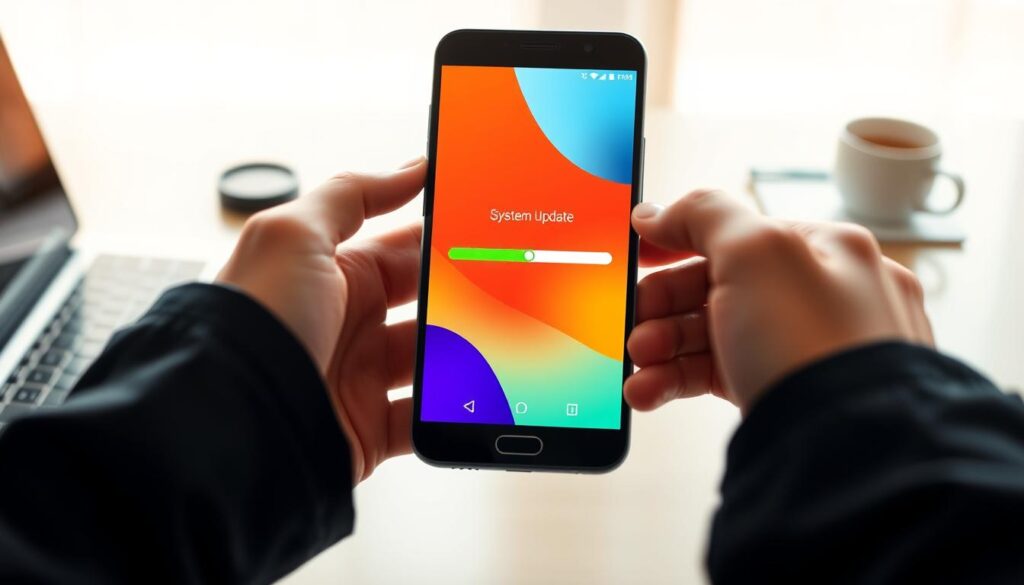
Install the latest operating system available in Settings
Open Settings and search for “System update” (paths vary by brand; try Settings > General > System Update). Download and install the latest Android version that your device supports.
Practical prep tip: use Wi‑Fi and keep the device plugged in so the update finishes without draining the battery.
Being “up to date” means installing the newest version your android phone can accept. Even older models gain stability and better security this way.
Update apps in the Google Play Store for smoother performance
Open the Google Play Store, go to Manage apps & device, and tap Update all. Updated apps often use system resources more efficiently and play nicer with new software versions.
After you remove unused apps, there are fewer updates to run. That saves time and lowers background update activity on the device.
- Benefit: fewer crashes and better overall performance.
- Benefit: improved security from recent patches.
Speed tweaks in Developer Options and device settings
Tuning a few developer options often produces one of the fastest perceived speed boosts. These settings are built into Android and are safe when you change only a handful of items described below.
Enable Developer Options
Open Settings > About phone > Software information and tap Build number seven times. You’ll see a confirmation. Return to Settings and open Developer options.
Reduce animations for a snappier screen
In Developer options find Drawing and set Window animation scale, Transition animation scale, and Animator duration scale to 0.5x. Window adjusts in-app motion, Transition controls screen changes and pop-ups, and Animator duration sets global animation length.
Background, multitasking, home refresh, and privacy
Open Active services to stop unused background processes and free memory.
If available, try the Force activities to be resizable option for better multitasking, but disable it if an app misbehaves.
Refresh the home layout by long-pressing the home screen and changing grid size, gestures, or wallpaper for a fresh feel.
Finally, go to Settings > Privacy > Permissions Manager and remove unnecessary access. Removing camera, location, or contacts permission from unused apps reduces unwanted background activity and protects data.
| Action | Where | Effect |
|---|---|---|
| Enable Developer options | Settings > About phone > Build number | Unlocks advanced settings |
| Reduce animation scales | Developer options > Drawing | Faster UI responses, shorter wait time |
| Review Active services | Developer options or Settings > Apps | Frees memory by stopping background processes |
| Refresh home screen | Long-press home > Home settings | Feels like a new device without buying one |
Conclusion
Quick recap, a few focused actions can restore usable speed on an older phone. Free up storage by removing unused apps and large files, offload photos and videos, and clear cache where it helps reclaim space.
Keep the system current: install OS and app updates regularly. That habit protects performance and extends device life without extra cost.
Reduce animation scales to 0.5x for a snappier feel and review background services to save battery and resources. Run a short monthly sweep of files and apps to keep things steady.
If you finish these cleanups and the device still lags, hardware limits are likely. Otherwise, these low-effort changes are an easy way to keep phones working with better speed and stability.
FAQ
Why does my Android phone feel slow right now?
A slow device usually points to low free storage, too many apps running in the background, or an aging battery. Check available storage in Settings, review battery usage for apps that spike power, and note any recent app installs or updates that coincided with the slowdown.
How much free storage do I need for smooth performance?
Aim to keep at least 10–15% of total storage free. That room helps the system manage temporary files and memory. Use the Files app or Settings > Storage to find large files, downloads, and unused apps you can remove.
Which apps should I delete first to free space and improve speed?
Remove seldom-used apps, games you no longer play, and duplicate utilities. Prioritize apps that consume lots of storage or run in the background. You can view app size and background activity in Settings > Apps before uninstalling.
Is clearing app cache safe and will it help performance?
Yes. Clearing the cache removes temporary data that can grow large over time. It won’t delete your account or saved files. Focus on less-used apps with big caches, like social media or streaming apps, to reclaim space and reduce slowdowns.
Should I back up photos and videos to speed up my device?
Offloading media to cloud services like Google Photos or to an external drive frees substantial space. After backing up, delete local copies or use “Free up space” features so the phone has more room for system tasks and app data.
How often should I update Android and apps for best speed?
Install system updates as soon as they’re available—these include performance and security fixes. Update apps regularly via the Google Play Store to get smoother code and fewer bugs. Updates often improve memory use and battery life.
What are Developer Options and how do I enable them?
Developer Options unlock advanced settings such as animation scales and background process limits. Enable it by tapping Build number in Settings > About phone seven times, then enter the new Developer Options menu in Settings.
Will reducing animation scales make my phone faster?
Yes. Lowering the Window, Transition, and Animator duration scales in Developer Options makes screens and menus appear to respond faster. Set them to 0.5x or turn them off for a snappier feel.
What does the “Limit background processes” option do?
That Developer Option restricts how many apps can run in the background at once. Limiting background processes reduces memory use and can improve responsiveness, but don’t set it too low or multitasking may suffer.
How can I check which apps are running in the background?
Go to Settings > Apps or Settings > Battery to view apps with background activity. Android also shows active services in Developer Options under “Running services.” Force-stop or uninstall apps that drain resources unnecessarily.
What multitasking setting can help apps load faster?
Some phones offer a RAM or memory boost feature and options to keep certain apps in memory. Use these sparingly for apps you open often. They trade storage or battery for quicker app launch times.
How do I refresh my home screen without resetting the phone?
Remove unused widgets, clear the launcher app cache, and reorganize folders and shortcuts. You can also switch to a lightweight launcher like Microsoft Launcher or Lawnchair to reduce resource overhead and get a fresh feel.
Can privacy permissions affect speed or battery life?
Yes. Apps with broad permissions (location, camera, background location) may run more often and use more battery. Review permissions in Settings > Privacy or Apps and revoke ones that aren’t necessary to reduce unwanted background activity.
Will clearing Downloads and other files make a difference?
Absolutely. Forgotten files in Downloads can consume significant space. Use the Files app to sort by size and age, delete redundant items, and empty the Downloads folder to free space quickly.
Could a failing battery or aging hardware be the problem?
If you’ve tried software fixes and your phone remains sluggish, a worn battery or older processor may cause persistent slowdowns. Check battery health if available, and consider a battery replacement or a newer device if performance continues to lag.
Are there trusted apps that safely help clean and speed up my phone?
Use reputable tools like Google Files for cleanup and built-in maintenance features from manufacturers such as Samsung Device Care. Avoid junk cleaner apps with aggressive permissions or poor reviews, as they can cause more harm than good.